Screen groups and video walls
Once you have more than a couple of screens, you stop wanting to set each one by hand. A group lets you give several screens one playlist, send them one command and schedule them together. A video wall goes further: it joins several panels into one big picture.
This guide covers making a group, what the group's controls do, which playlist a screen plays when it has one of its own as well, playing a group in step, and building a video wall.
Before you start
- Groups work in both views. You find them on the Screens page, in Simple and in Advanced view.
- The Video Walls page is in Advanced view. New accounts start in Simple view. Switch with the Simple / Advanced buttons at the top of the menu.
- Publish your playlists first. A group or wall can be given a draft playlist (the list marks it "(draft)"), but screens show only what has been published.
Make a group
There is no "New group" button. You make a group from the screens that will be in it:
- Open Screens and tick the box in the top-left corner of each screen you want in the group. A bar appears saying how many are selected, with All, Invert and Cancel.
- Choose Add to group ▾. The menu lists the groups you already have.
- Choose Create and add to group, type a name at Group name: and press OK.
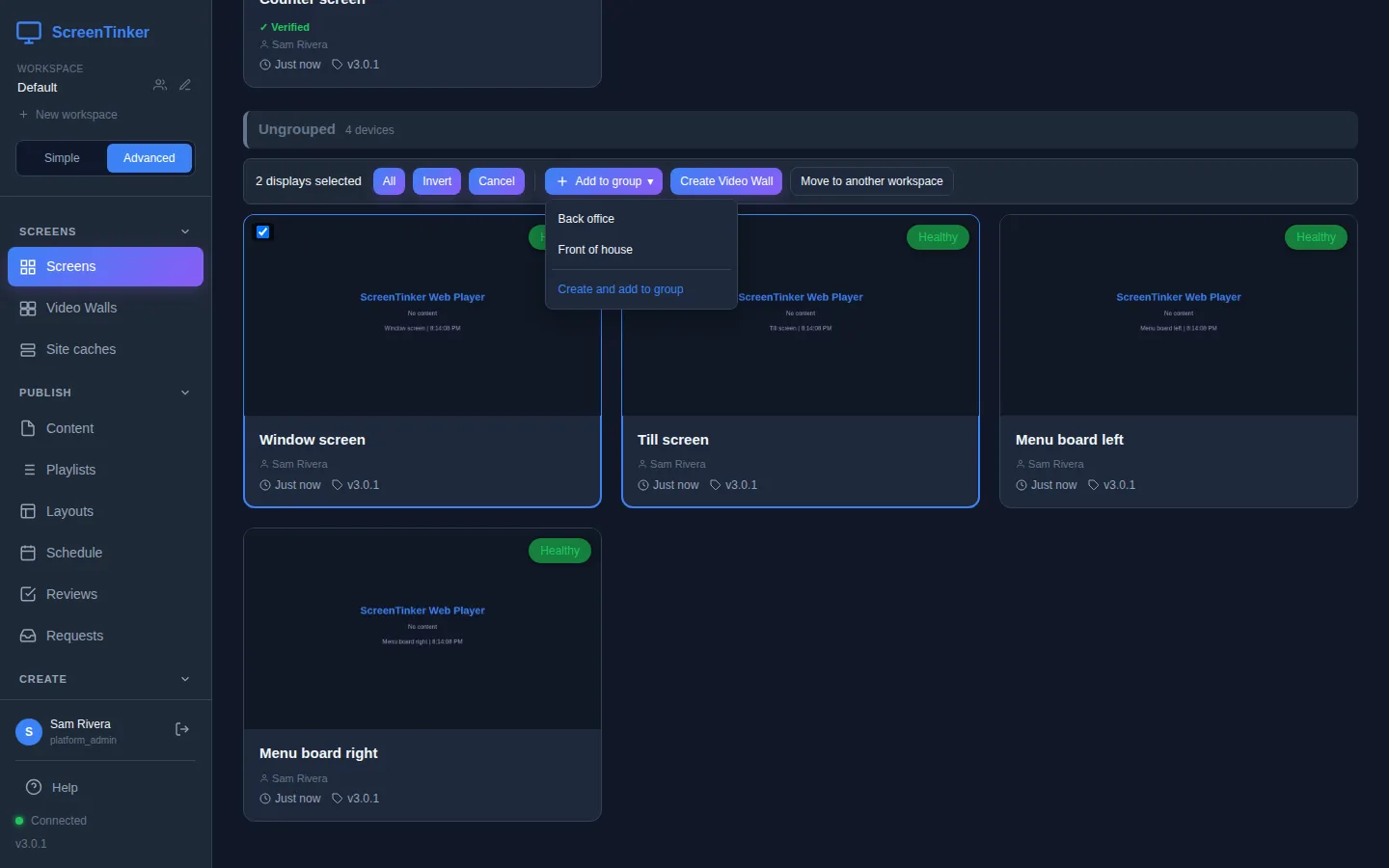
To add more screens later, tick them and pick the group from the same menu, or drag a screen's card onto the group. Dragging moves the screen: if it was in another group, you are asked to confirm and it leaves that one. Dragging a card down to Ungrouped takes it out of every group.
To take screens out, tick them inside the group and press Remove from group. The ✕ at the end of the group's bar (Delete group) deletes the group itself; the screens are not affected. Any schedules made for the group are turned into schedules for each of its screens, so they keep running.
A screen can be in more than one group if you add it from the menu. The Screens page shows it only once, under the first of its groups.
What the group's bar does
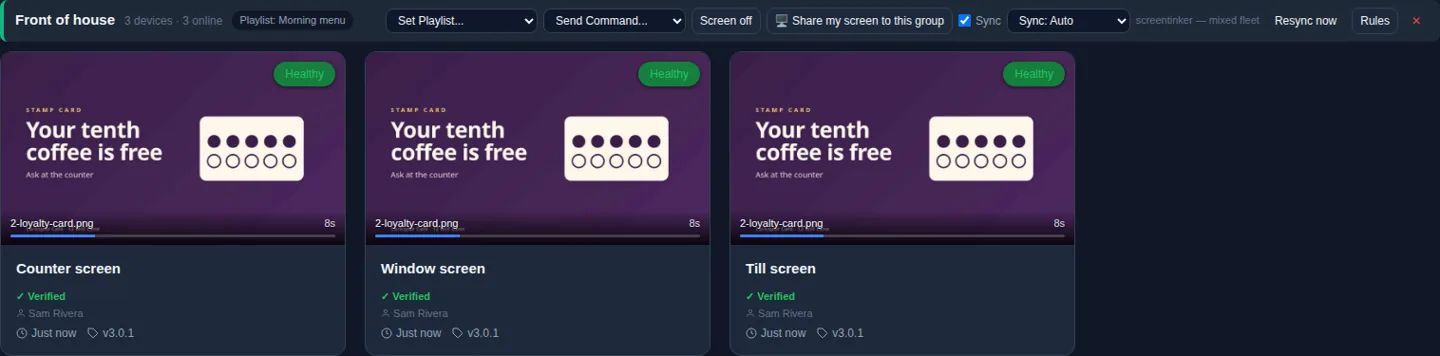
Each group has a bar with its name, how many screens it has and how many are online, and a Playlist: label when it has one. The controls on the right reach every screen in the group (they appear once the group has at least one screen):
- Set Playlist...: pick a playlist and confirm. The group gets that playlist, and so does every screen added to the group later.
- Send Command...: Screen On, Screen Off, Restart App, Check Update, Reboot, Shutdown or Change server URL. Reboot and Shutdown ask you to confirm first. Screens that can't do a command are skipped, and the message says how many.
- Screen off: opens the Display power schedule, the weekly times the screens switch off. It applies to every screen in the group that doesn't have a power schedule of its own.
- Sync: plays the group in step. See group sync.
- Rules: fills the group by itself. See rule-based groups.
Groups are also something you can schedule: in the Schedule calendar, choose Group under Apply to. See Scheduling content on your screens.
Group playlist or the screen's own: which plays
Giving a group a playlist does not overwrite anything on its screens. Each screen works out what to play in this order, and the first one that applies wins:
- A playlist set by head office, if your organization uses head office (corporate) playlists.
- A schedule that is running now.
- The screen's own playlist, if you set one on the screen.
- The playlist of the video wall the screen is part of.
- The group's playlist. If a screen is in several groups that each have one, the oldest group wins.
Open a screen and choose the Playlist tab to see which applies. Next to the playlist it says Inherited from and the group or wall, or Set for this screen when the screen has its own. To drop a screen's own playlist and follow the group again, press Use inherited.
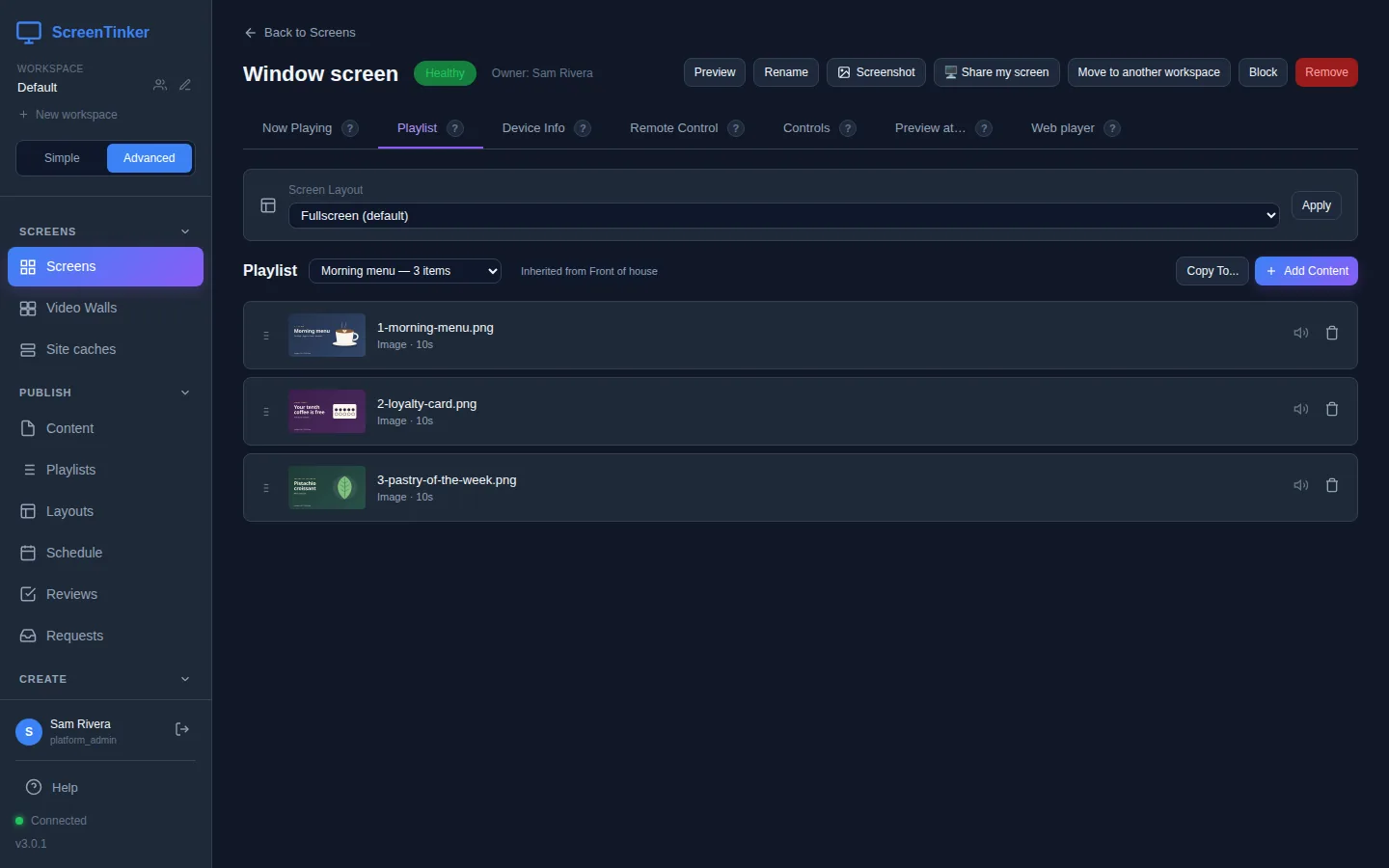
If you add, remove or reorder items on the Playlist tab of a screen that inherits, the change is made to a copy for that screen only (called "screen name playlist"). From then on the screen shows Set for this screen and no longer follows the group. To change what the whole group plays, edit the playlist itself under Playlists and press Publish.
Rule-based groups
Instead of adding screens by hand, a group can fill itself. Press Rules on the group's bar, choose whether screens must match all or any of the rules, and press + Add rule. A rule checks a screen's Tag, Name (contains, starts with or is), Platform or Timezone. The window counts how many screens match as you type. Press Save rules.
The group then shows an Auto: label and keeps itself up to date as screens are added, renamed or tagged. You can't add or remove its screens by hand while the rules are on. Turn rules off makes it an ordinary group again and keeps the screens it has. A group can have up to 20 rules.
Play a group in step (group sync)
Normally each screen runs through the playlist on its own, so screens side by side drift apart. Tick Sync on the group's bar and they change items at the same moment. Each screen follows a shared clock, so they stay in step even if the internet drops.
- Sync needs a playlist set on the group. A screen that is playing something else (its own playlist, or a schedule) is left out of the sync.
- Once Sync is on, a menu lets you pick the method. Sync: Standard works on every kind of player and keeps them to the second. Sync: BrightSign is frame-accurate, but only for video, and only when every screen in the group is a BrightSign player on the same network. Sync: Auto (the default) picks BrightSign when the group can use it and Standard otherwise. Next to the menu, it says which one the group is really using.
- Resync now tells every screen to line up again straight away, for example after you change the playlist.
The Roku app doesn't do group sync or video walls yet. In a synced group it plays the playlist on its own.
Video walls
A video wall treats several screens as one big screen: one picture spread across all of them, each panel showing its part. Video walls are in Advanced view.
- On Screens, tick two or more screens and press Create Video Wall, then give it a name. Or choose Video Walls in the sidebar and press New Video Wall, then drag screens from Available Displays onto the canvas.
- Arrange the panels on the canvas to match how they hang on the wall (see the wall editor), then press Save layout.
- Under Playlist, pick a playlist and press Set Playlist.
A screen that joins a wall leaves all its groups, and its card disappears from the Screens list: the wall's card stands in for it, at the top of the page. If a panel had a playlist of its own, it keeps playing that instead of the wall's, so clear it with Use inherited on the panel's page.
The wall editor
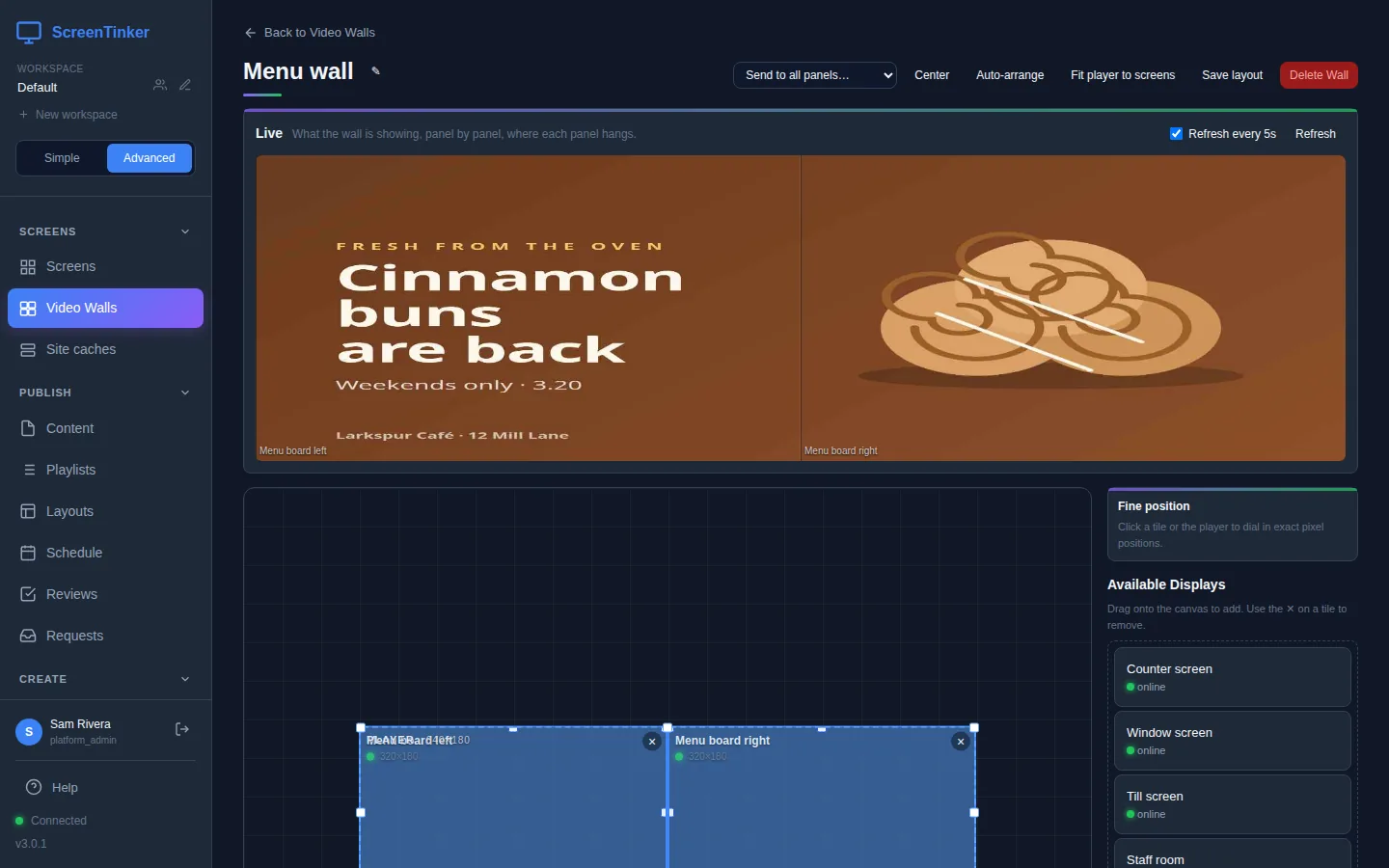
The canvas is the wall as the people in front of it see it. Each rectangle is a screen. The blue dashed rectangle is the player window: the picture plays inside it, and each screen shows the part of it that it covers. Drag a rectangle to move it, drag its corners to resize it, or select it and type exact numbers in X, Y, W and H. Arrow keys move it 1 pixel, or 10 with Shift.
- Auto-arrange lays the screens out in a grid from Columns, Rows, H Bezel (px) and V Bezel (px). Use the bezel numbers to leave room for the frames between panels, so lines and text continue straight across.
- Fit player to screens makes the player window cover all the screens.
- How this panel is mounted: if a panel hangs sideways or upside down, select it and choose Turned left (90°), Upside down (180°) or Turned right (270°). The content is turned for you, so you don't need portrait versions of your videos. While a panel is in a wall, this replaces its own orientation setting.
- Send to all panels… sends a command (such as Screen Off or Reboot) to every panel. Panels, under the canvas, shows whether each one is online.
- The ✕ on a rectangle takes that screen out of the wall when you press Save layout. It goes back to Ungrouped on the Screens page.
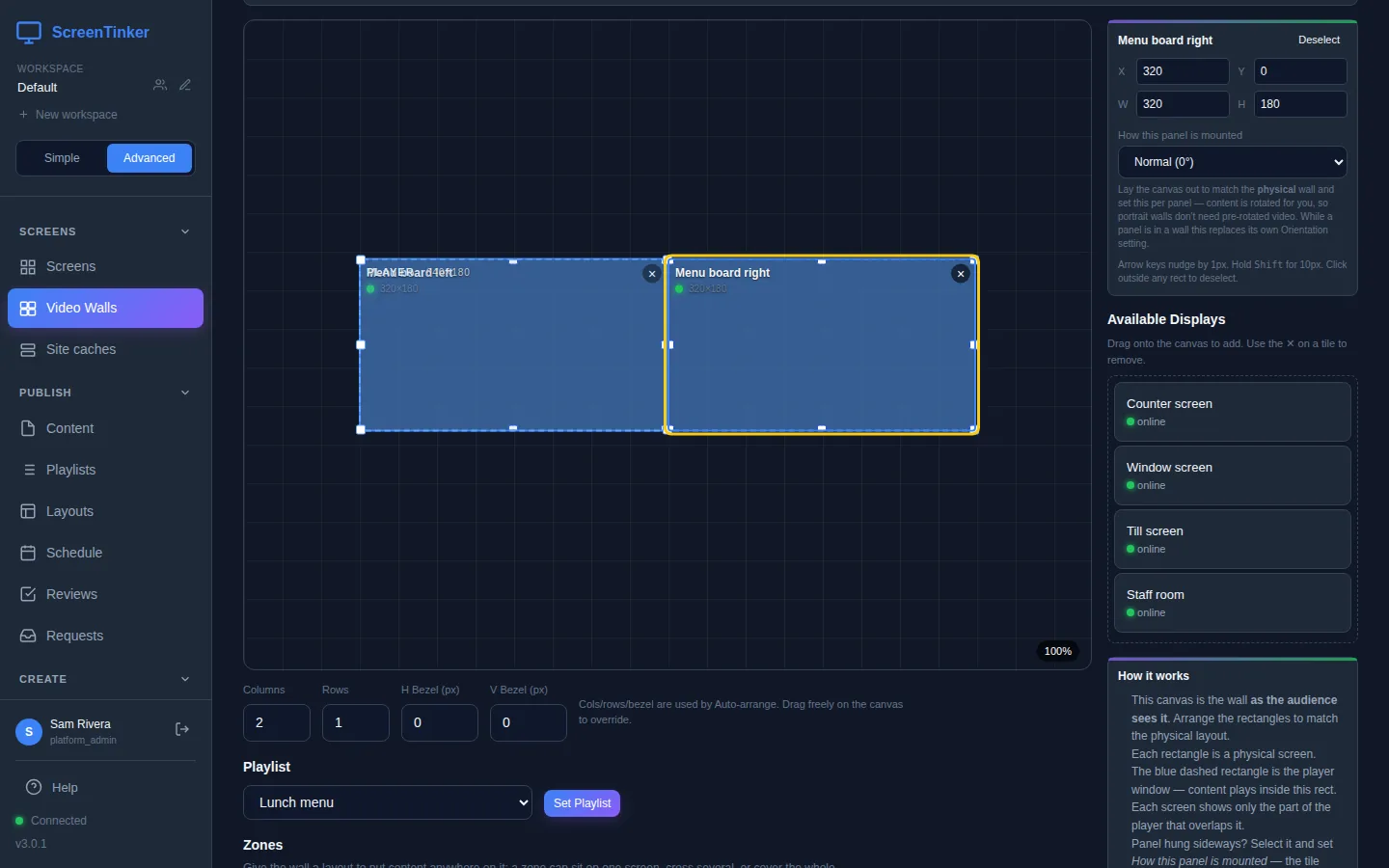
A click on a screen selects that screen, even where the player window lies over it, as it does after Create Video Wall. To move or resize the player window, drag its PLAYER label or a corner.
Different content on different panels
Without zones, the wall's playlist fills the whole wall. Under Zones you can give the wall a layout instead, so content can sit on one panel, cross several, or cover the whole wall. The quickest start is One zone per screen (save the layout first). Then, for each item of the wall's playlist, choose its zone and how many Seconds it plays. + Hold adds a pause to a zone so the panels can take turns. Edit zones opens the layout to change the zones' shapes.
These changes go into the wall's playlist as a draft. Press Publish when the wall should show them. Each zone loops on its own total time; give the zones the same total if a sequence must stay in step across panels. Older players that can't draw wall zones are named in a warning, and play the whole playlist across the wall instead.
Schedules for a wall
Once you have a wall, the Schedule calendar offers Video wall under Apply to, so the whole wall switches playlist at set times. All panels of a wall run on one clock, so they switch together. See Scheduling content on your screens.
FAQ
I set a playlist on the group, but one screen still shows something else.
Open that screen's Playlist tab. If it says Set for this screen, it has its own playlist; press Use inherited. If a schedule is running, the screen plays that until it ends. The Preview at… tab explains which one wins and why.
Can a screen be in a group and on a video wall?
No. A screen that joins a wall leaves its groups, and a rule-based group never picks up a screen that is on a wall.
What happens to the group's schedules if I delete the group?
They are copied to each screen that was in the group, so nothing on the screens changes. Delete those copies in the Schedule calendar if you no longer want them.
Try it on your own screens
Start a 14-day Pro trial on hosted ScreenTinker: up to 15 screens, every feature, no credit card.
Or host it yourself, free and open source: self-hosting guide · GitHub