White-label digital signage: put your own brand on ScreenTinker
If you run screens for your customers, or for your own company, you may want them to see your name instead of ScreenTinker. White-labelling replaces the name, colours, logo and browser icon on the dashboard and the sign-in page, and the name on web player screens.
This guide covers what your brand changes and what it does not, the two places you set it (once for the whole server, and once per workspace), which one wins, and how to use your own web address.
Before you start
- Who can set it. The server-wide default is set by the platform administrator (on your own server, the first account created). A workspace's own brand can be set by its Admins and by organization owners and admins.
- Logo and icon are web addresses. There is no upload button. Put your logo and favicon somewhere public (your website, for example) and use their
https://addresses. - Each workspace has its own brand. A workspace is the space a customer's screens and content live in. You can switch workspaces from the box under the brand name at the top of the menu.
Custom branding comes with the Enterprise plan. Workspace admins find it in Settings under White Label / Branding; on other plans that section offers View Plans instead. A custom domain and custom CSS are set up by the ScreenTinker team: email [email protected].
What your brand changes
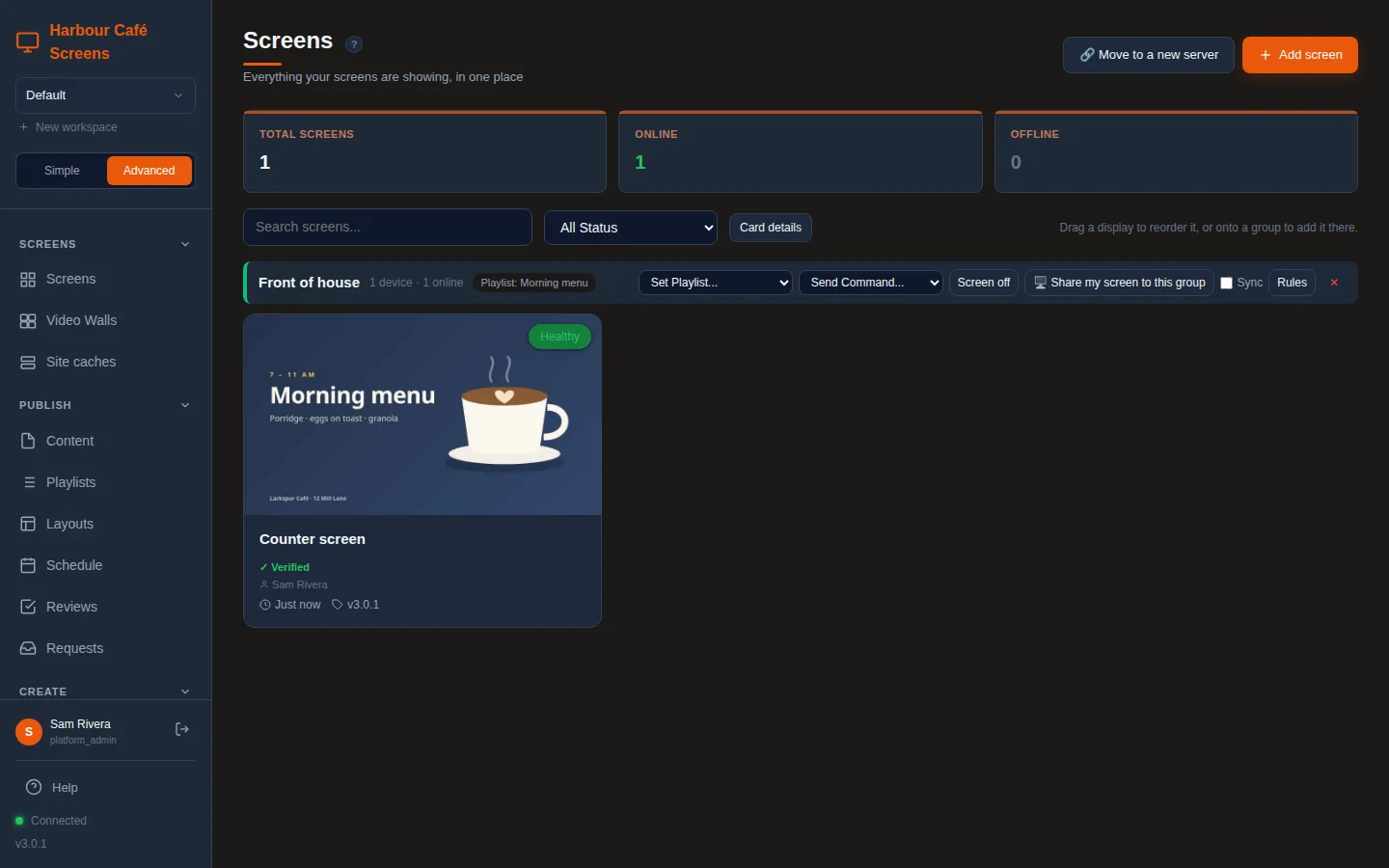
- The dashboard: your brand name at the top of the menu and in the browser tab, your primary colour on buttons and highlights, your background colour, and your favicon. Text about the installed apps, such as the setup steps in Settings, still says ScreenTinker, because those apps keep their standard name (see what keeps the ScreenTinker name). The small screen icon next to the name stays as it is.
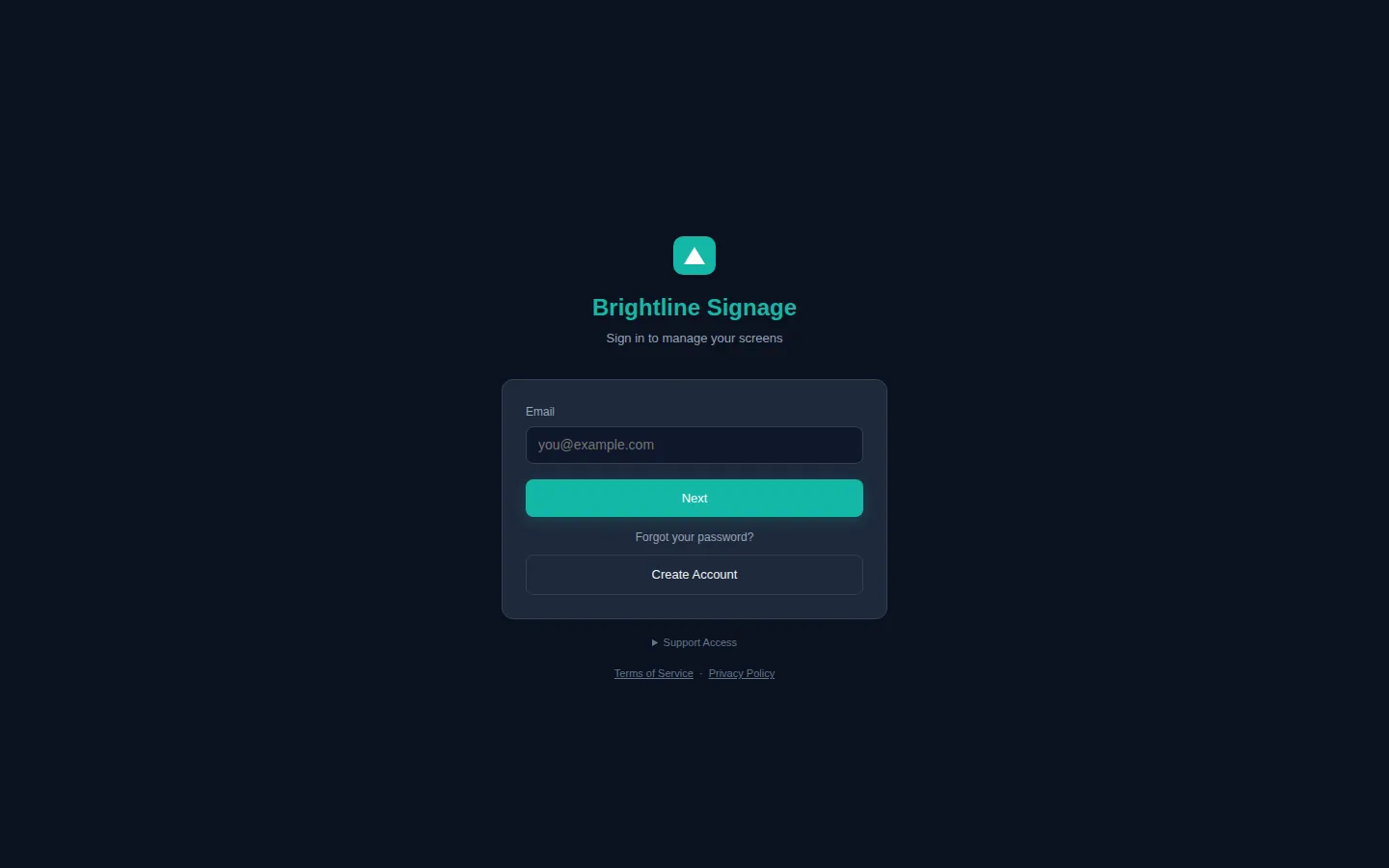
- The sign-in page: your logo, your brand name and your colours.
- Web player screens: your brand name on the pairing screen, the "Connecting..." screen and the browser tab. Only the name: the logo and colours are not shown there. See what screens show.
- Content request forms (the public page people use to send you content): your logo or name and your primary colour.
What keeps the ScreenTinker name
- Emails. Password resets, invitations, offline alerts and other emails are not branded: they don't use your logo or colours, and most subjects start with "[ScreenTinker]". The one small exception is the code emailed to someone filling in a content request form, which is signed with your brand name.
- Installed apps. The apps for Android and Fire TV, Samsung (Tizen), LG (webOS), Roku and iOS, and the native players for Raspberry Pi and Windows, keep their standard name and icon. Each app is built and signed once and published for everyone, so it cannot carry your brand. Inside the app, your content plays as normal.
Branded app builds, with your name and icon in the app list, need a custom agreement. Email [email protected]. Until then, the web player in a browser is the way to show screens that never say ScreenTinker.
You can change the sender name on outgoing email in your server's email settings (GRAPH_SENDER_NAME, or the name in SMTP_FROM). The "[ScreenTinker]" at the start of the subject stays.
Which brand is used
There can be three brands on one server. ScreenTinker picks one in this order:
- The workspace's own brand, set in Settings. Once someone is signed in, or a screen is paired, this is the one they see.
- The brand of a custom domain. Before anyone signs in, the server does not know the workspace yet. It looks at the web address instead: if it matches a workspace's Custom Domain, that workspace's brand is used. This is what the sign-in page and an unpaired screen show.
- The server's default brand, set under Platform → Branding. It covers every workspace that has no brand of its own, and every web address that is not a custom domain.
If nothing is set at all, you get the ScreenTinker name and colours.
Once a workspace saves its own brand, it no longer follows the server's default, not even for fields it left empty. If you later change the default, workspaces with their own brand keep theirs.
Set the default brand for the whole server
This is the brand people see on the sign-in page, and in every workspace that has not set its own. Only the platform administrator can change it.
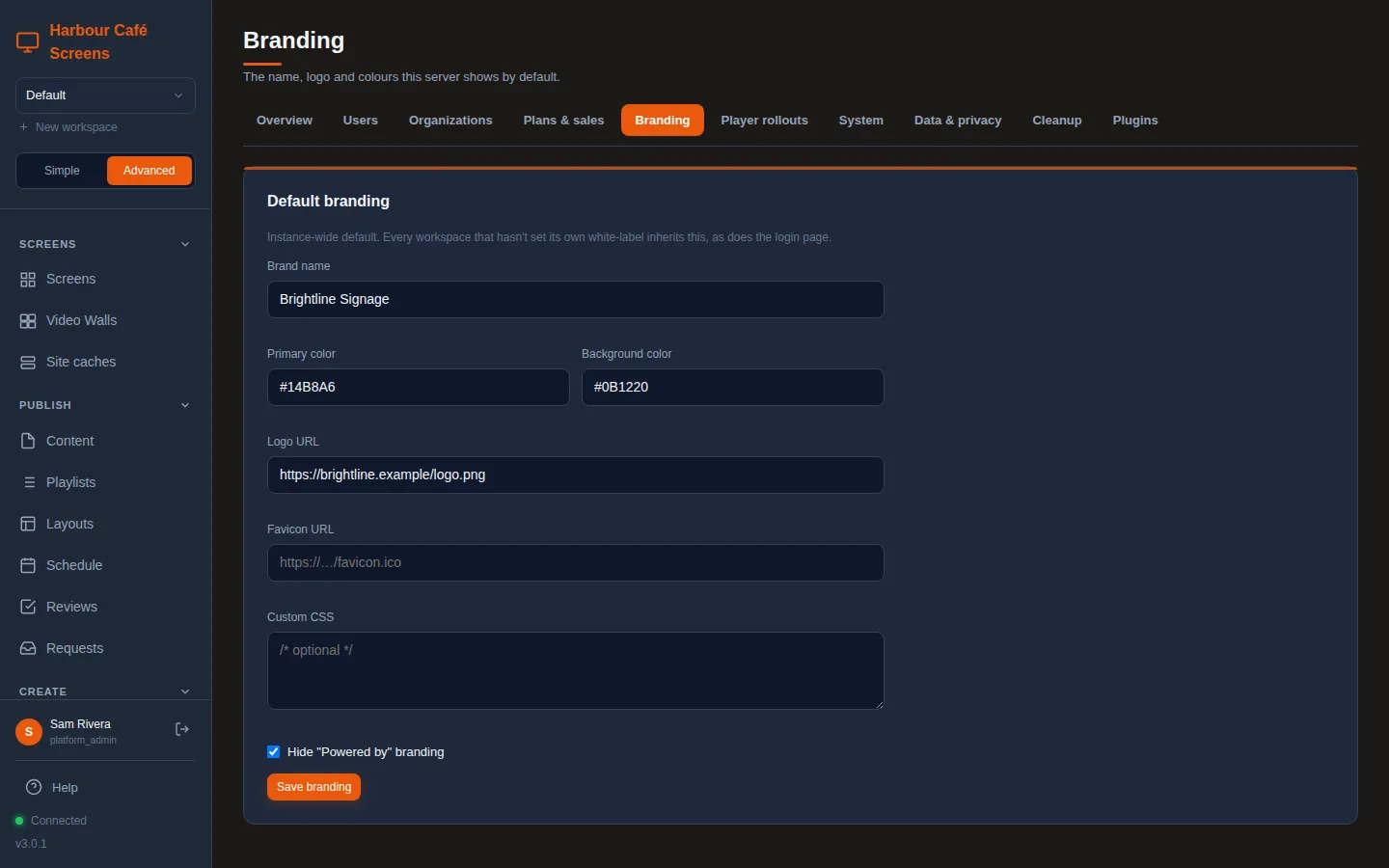
- In the menu, under Platform, choose Branding.
- Fill in Brand name.
- Primary color and Background color: type them as colour codes, such as
#14B8A6. - Logo URL and Favicon URL (optional): the web addresses of your logo and browser icon.
- Custom CSS (optional): style rules for the dashboard and sign-in page, for whoever knows CSS.
- Tick Hide "Powered by" branding if you want no mention of ScreenTinker. See what screens show.
- Press Save branding.
Brand one workspace
Use this when each customer should see their own brand, or when one workspace should look different from the server's default.
- Switch to the workspace in the box at the top of the menu.
- Choose Settings and scroll down to White Label / Branding.
- Fill in Brand Name, and optionally Logo URL and Favicon URL.
- Pick a Primary Color and Background Color. Preview tries the colours on your own dashboard straight away (reload the page to undo it).
- Press Save Branding. The dashboard changes at once.
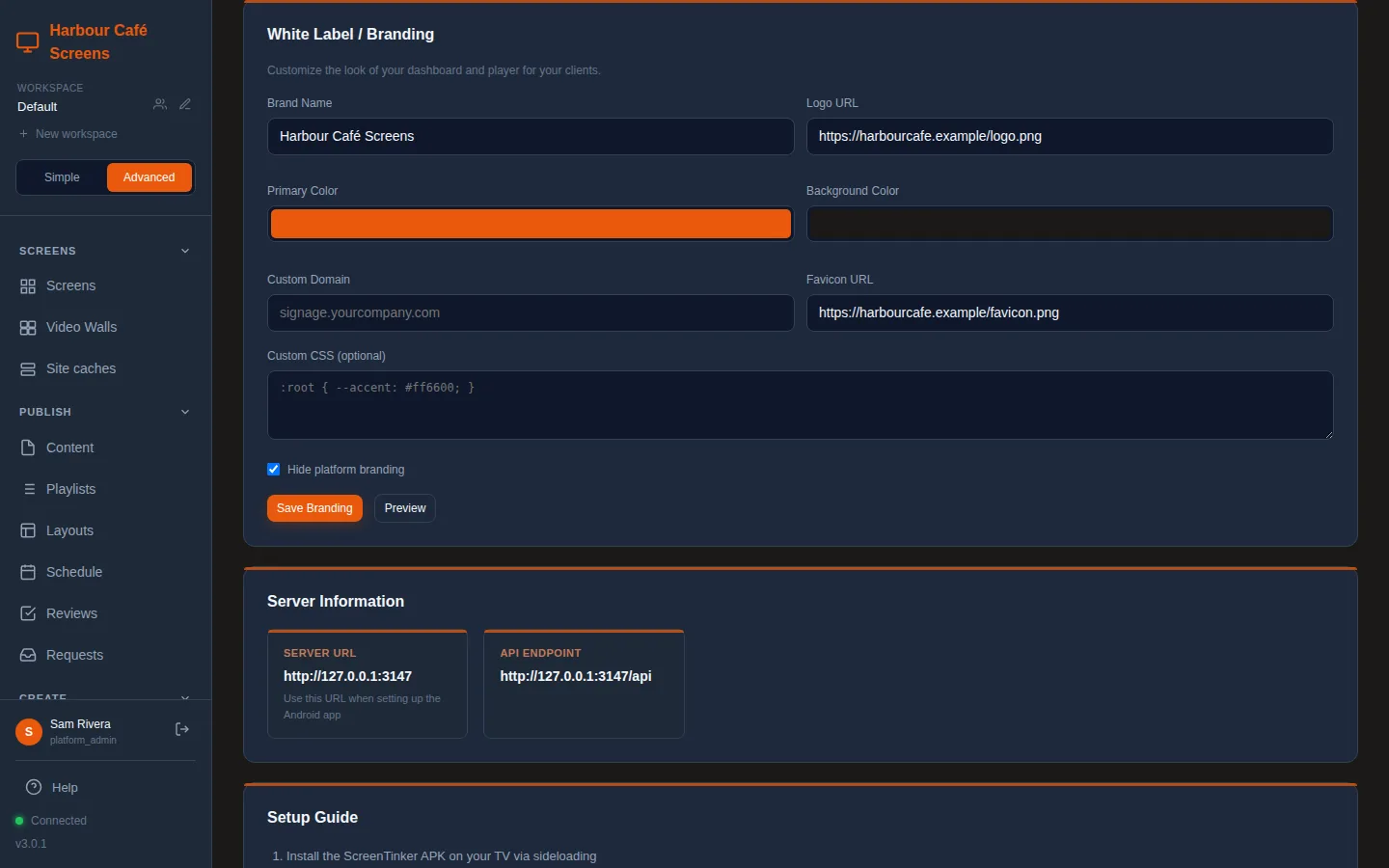
Custom Domain and Custom CSS (optional) can only be changed by the platform administrator. For anyone else they are read-only ("Only a platform administrator can change this"). Both affect people outside the workspace: a custom domain decides which brand the public sign-in page shows, and custom CSS runs on that page.
What screens show
The web player shows your brand name, never your logo or colours. You see it above "Web Player" on the pairing screen, on the "Connecting..." screen and in the browser tab. While content is playing, only your content is on screen.
- Before pairing, a screen does not belong to a workspace yet, so it shows the brand of the web address it opened: a custom domain's brand, or else the server's default.
- Once paired, it switches to its workspace's brand name and remembers it, so it shows the right name after a restart too.
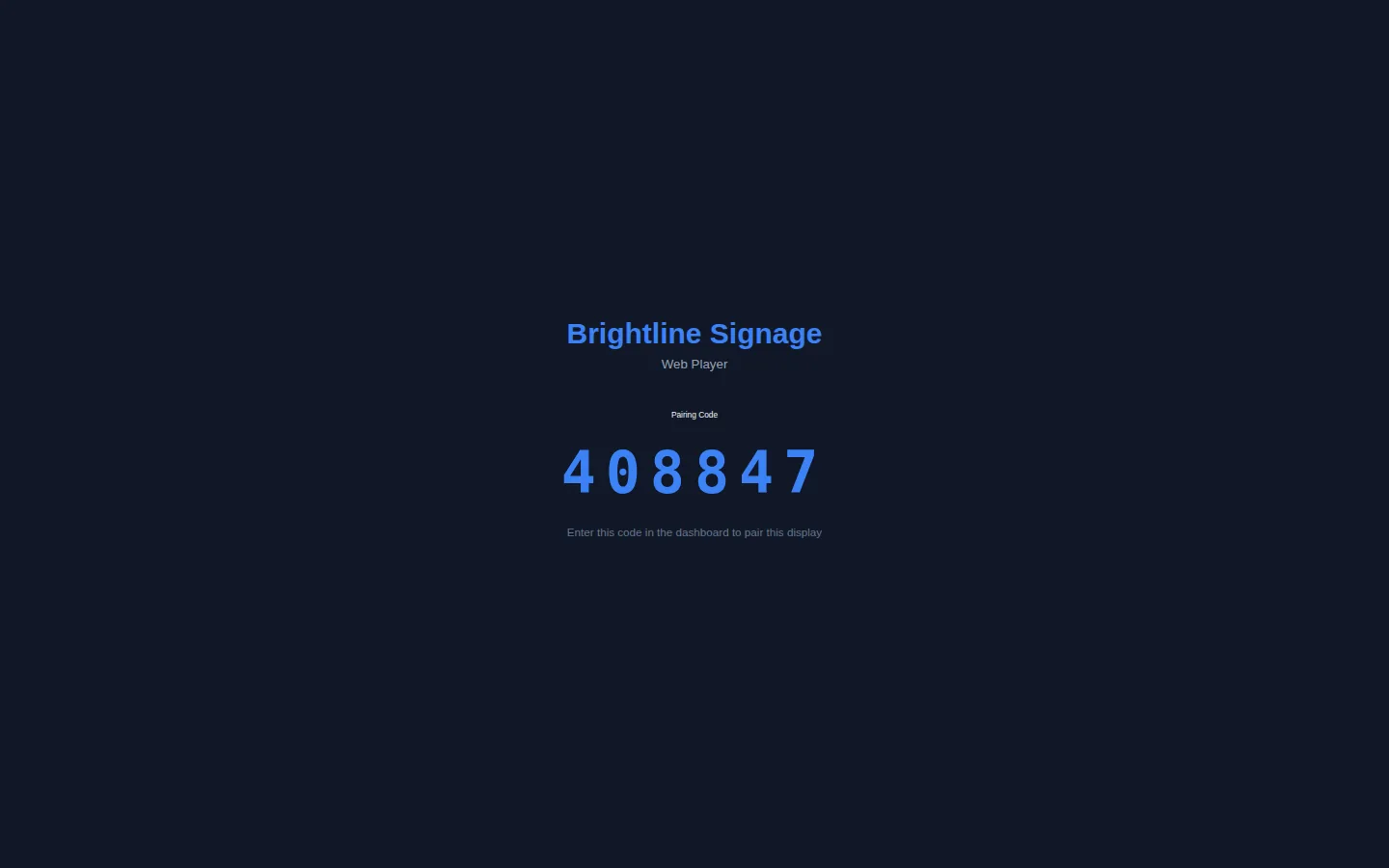
A brand name you set always shows. Hide platform branding only hides the name ScreenTinker: if you tick it and leave the brand name as ScreenTinker, screens show no product name at all, just "Web Player". On a content request form it also removes the line at the bottom.
Everything that loads its pages from your server can carry your brand: a browser in kiosk mode, a smart TV's browser, a Chromebook, or a small PC opening your server's /player page. That is the way to run screens that never say ScreenTinker.
Use your own web address
A custom domain, such as signage.yourcompany.com, lets people open the dashboard and the web player at your own address. The sign-in page and unpaired screens at that address then show the brand of the workspace it belongs to.
1. Point the domain at your server in your DNS. 2. Put it behind your web proxy with an HTTPS certificate, and make sure the proxy passes the original host name and live connections through (the self-hosted guide covers the proxy). 3. As platform administrator, switch to the workspace, enter the name in Custom Domain without https:// or a slash, and press Save Branding. ScreenTinker does not create the DNS record or the certificate for you.
On screentinker.com you cannot add a custom domain yourself. Email [email protected] to ask about one.
FAQ
I changed the default brand, but one workspace still shows its old brand.
That workspace has saved its own brand, and its own brand always wins. Change it in that workspace's Settings instead.
Why does my Android TV still say ScreenTinker?
Installed apps keep their standard name and icon; only pages that come from your server carry your brand. Use the web player in a browser, or ask [email protected] about branded app builds.
Can I upload my logo?
No. The logo and favicon are web addresses. Put the files somewhere public and paste their https:// addresses.
Are emails sent with my brand?
No. Emails are not branded, whichever plan or server you use.
Try it on your own screens
Start a 14-day Pro trial on hosted ScreenTinker: up to 15 screens, every feature, no credit card.
Or host it yourself, free and open source: self-hosting guide · GitHub